How to switch your internet radio station to CastHost
Table of Contents
Moving a radio station to a new host sounds like a big job, but most of it is a checklist. You back up what you have, set up and test the new stream while your old one keeps playing, update the places listeners find you, then switch over.
This guide walks through each step for Shoutcast and Icecast stations, whether you broadcast live, run AutoDJ, or both. If you’d rather not do it alone, our team can help with the move. Just ask when you sign up or contact us.
The short version:
- Back up your music, playlists and settings from your current host.
- Start a free CastHost trial and set up your new stream.
- Upload your music and rebuild AutoDJ.
- Connect your encoder and test with your DJs.
- Update your players, website, apps and directory listings.
- Switch over, then cancel your old plan once everything checks out.

Back up your station before you move
Do this first, while you still have full access to your old control panel. Some hosts delete files soon after a plan ends.
Collect these:
| What | How to save it | Why you need it |
|---|---|---|
| Music, jingles and station IDs | Download the original files | You’ll upload them to your new AutoDJ |
| Playlists and rotation rules | Export them if your panel allows it, or take screenshots | You’ll rebuild them on CastHost |
| Schedule | Screenshot it or write it down, including the time zone | So shows and playlists start at the right times |
| DJ accounts | List each DJ and what they need access to | Each DJ will get new connection details |
| Encoder settings | Note your format, bitrate and sample rate | Keeps your sound the same after the move |
| Every stream link you use | Copy the direct stream URL, any .pls or .m3u links and any HTTPS link | You’ll need to replace each one later |
| Where those links live | List your website player, apps, TuneIn and other directories, social profiles | This becomes your update checklist |
That last list matters more than people expect. Your stream URL is probably in more places than you remember: an old blog post, a mobile app, a partner’s website, a directory you signed up for years ago. Write them all down now.
Set up and test your new stream
Sign up for the 7-day free trial. It includes 50 listener slots, 128 kbps streaming, 512 MB of storage and AutoDJ, and no credit card is needed. When you upgrade to a paid plan, your station keeps its stream address and everything you’ve set up, so the testing you do during the trial carries over.
Choose Shoutcast or Icecast
Paid plans let you choose either server type. If you’re already on one, staying with it is usually simplest because your encoder and players already know how to talk to it. If you’re not sure which fits, our guide to the differences between Shoutcast and Icecast covers it.
A quick note on how the two build their stream links, since this affects what you update later:
- Icecast uses a mount point, so a listener link looks like
https://yourserver:port/live. The Icecast documentation explains mount points in detail. - Shoutcast v2 can run several streams on one server, each with a stream ID, so links often end in something like
/stream/1/. - Older Shoutcast v1 setups usually have one stream per port.
Your new link will look different from your old one, so plan to update it everywhere it appears.
Upload your music and rebuild AutoDJ
Upload your music in the control panel. For a large library, use SFTP to send files in bulk instead of one at a time. Our guide on how to upload music to your AutoDJ server shows both ways. Then recreate your playlists, rotation and schedule using the notes and screenshots you saved. Check that the time zone matches your old setup, or your morning show may start at the wrong hour.
The AutoDJ quick start guide walks through each setting.
If your library is larger than the trial’s 512 MB, upload a sample to test with, then add the rest after you upgrade.
Reconnect your encoder and your DJs
Your new station has its own server address, port, password and mount point or stream ID. Find them in your control panel, then save them as a new profile in your encoder. Most encoders let you keep more than one. Keeping your old profile means you can switch back quickly if you need to.
Send each live DJ their new connection details and ask them to do a short test broadcast. Then test the handoff both ways: from AutoDJ to a live DJ, and back to AutoDJ when they finish. Our AutoDJ to live source guide explains how the switch works.
The encoder quick start guide, our guide to streaming live with Shoutcast or Icecast and our BUTT setup guide cover the settings step by step. BUTT is free, and you can download it from its official site.
Test like a listener
Before you change anything public, listen to your new stream the way your audience will:
- Play the new link in a web browser on a computer and a phone.
- Check that song titles show up correctly.
- Add the new link to a test page with your player and make sure it plays over HTTPS.
- Leave it running for an hour or two to make sure AutoDJ rotates the way you expect.
Update the links your listeners use
Now work through the list you made at the start. Do your highest-traffic places first, usually your website player and TuneIn.
| Where | What to change |
|---|---|
| Website player | Swap the old stream URL for your new HTTPS link. If you need a player, our free radio player widget works with both Shoutcast and Icecast. |
| Mobile app | Update the stream URL in the app’s settings, or ask your app developer to. |
| TuneIn | Request the change through TuneIn’s broadcaster tools. Their help page explains the steps. Updates can take a few days to appear. |
| Other directories | Log in to each directory you’re listed on and edit your stream link. If one doesn’t offer editing, contact it directly. Our list of internet radio station directories can remind you where you might be listed. |
| Social profiles and old posts | Update “listen live” links in your bio and any pinned posts. |
| .pls or .m3u files | Replace any playlist files you offer for download with new ones. |

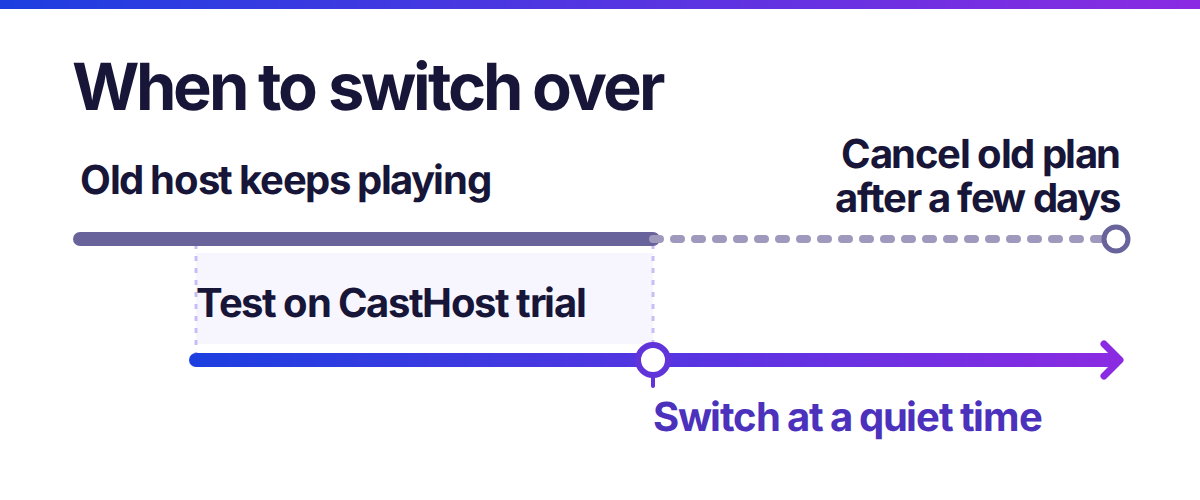
Keep your old plan active while you do this. As long as it’s running, your old stream address keeps working, so listeners who still have an old link or haven’t seen an update yet can keep tuning in. Some directories take days to process changes, and this overlap covers that gap.
Every CastHost plan includes an HTTPS stream link, which most modern websites and browsers need for embedded players. If you ever need an HTTPS link for a stream hosted somewhere else, our Secure Stream URL service covers that.
Switch over and check everything
When your new stream is tested and your main links are updated, it’s time to make CastHost your main stream:
- Pick a quiet time, like late at night or between shows.
- Point your main encoder, or your AutoDJ schedule, at CastHost.
- Listen to the new link right away, then check your website player and one or two directories.
Expect a short break while your encoder disconnects from the old server and connects to the new one. It’s usually brief, which is why a quiet time works best.
Keep your old plan for a few more days if you can. Use that time to:
- Check your listener stats on CastHost to make sure people are finding the new stream.
- Confirm TuneIn and other directories show the new link.
- Make sure you’ve downloaded anything else you want from the old host.
Once everything checks out, cancel your old plan.
FAQ: Switching your radio station to CastHost
Can I move my Shoutcast or Icecast station to CastHost?
Yes. We host both Shoutcast and Icecast, with AutoDJ and live broadcasting on every plan. You can test everything on a free 7-day trial before you switch your listeners.
Can you help me move my station?
Yes. Our team can help you set up your stream, connect your encoder, upload your music and rebuild your playlists. Mention it when you sign up or open a support ticket and we’ll go over what you need.
Can I switch hosts without interrupting my broadcast?
Mostly. You can set up and test your new stream while your old one keeps playing, so listeners don’t notice the preparation. There’s a short break at the moment your encoder switches from the old server to the new one, so plan it for a quiet time.
Can I keep my current stream URL?
Your old stream address keeps working as long as your plan with your current host is active. Your CastHost stream will have its own new address, so update your player and directories to it, then cancel the old plan once listeners have moved over.
Can you transfer my music, AutoDJ playlists and schedule?
Yes, we can help. You’ll need to download your music files from your old host first. Then we can help upload them and rebuild your playlists and schedule on CastHost.
What should I download from my old host before I leave?
Your music files, jingles and station IDs, any playlist exports, screenshots of your schedule and settings, and a list of every place your stream link appears. Do this before your old plan ends, since some hosts remove files quickly.
How do I update my stream URL on TuneIn and other directories?
Each directory has its own process. TuneIn uses its broadcaster help tools, and most other directories let you edit your listing after you log in. Some take a few days to update, which is why it helps to keep your old plan running until they do.
Does my setup carry over when the trial ends?
Yes. When you upgrade from the free trial to a paid plan, your station keeps its stream address and the setup you’ve done, including your music and playlists.
When can I cancel my old hosting?
After your new stream has been your main stream for a few days, your main players and directories show the new link, and you’ve downloaded everything you need. Keeping the old plan a little longer is cheap insurance.
Related Articles

 Home